Search for an address as you type
Find a job or customer address from suggestions, type one that is not listed, or add a What3Words location.
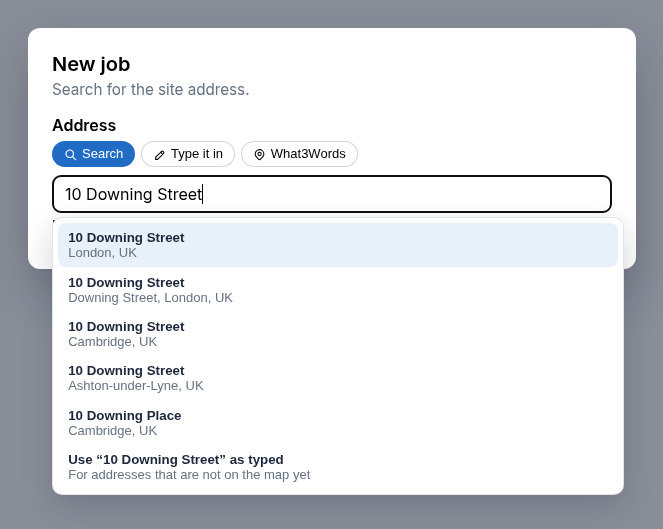
When you add or change an address, start typing and pick a match. A business you pick keeps its name as well as the street. This is on new jobs, new customers (including a customer added while you create a job), the customer page, and when you update a job or site address. Job directions can also leave from another address you search, type, or set with What3Words.
On create job, Search, Address, and What3Words sit in the same kind of control as job type: the one you pick is highlighted in soft yellow. A product you include uses that same highlight, and the plus turns into a check as you hover it.
If the place is not on the map yet, choose Address and write it yourself. For a plot, a field, or anywhere a street address does not help, choose What3Words and enter the three words, such as filled.count.soap.
On a job or customer you already have open, the address box is a smaller version of that control. Save address shows underneath once the address has changed, and the address and map update as soon as you save. A typed address can show a map even when the job did not have one yet. If the save does not go through, the address you typed stays so you can try again.
Directions from a What3Words start use that spot on the map. If you change that start before the lookup finishes, the route keeps the one you chose.
A place you pick keeps that map pin. If you type a different address, or switch a job back to the customer address, the previous pin is cleared so directions do not keep the old site.
Suggestions stay on top of dialogs, so you can pick one without them disappearing behind the window.