Messages you send from FitterPal now look like a normal email from your company, without the old boxed layout.
Emails you write and send to customers no longer sit inside a boxed transactional layout. The message body shows as plain content, closer to something you would send from your own email client.
Your company logo and contact details still appear automatically in the footer.
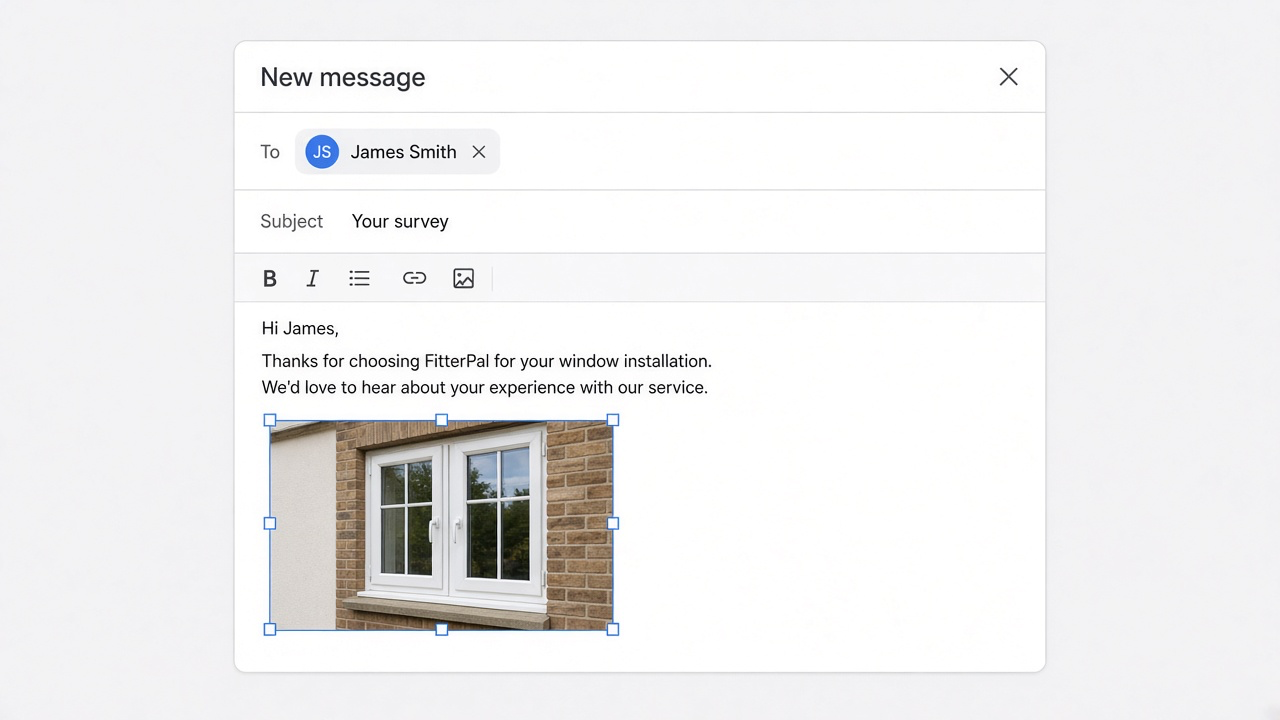
We've improved the email composer and templates to support formatting and embedding images.
We've added the ability to add formatting to your emails, including bold, italic, and strikethrough text, links, and lists. You can also insert images directly into the email that will be sent as an attachment.
This is also available in email templates, so you can look consistently professional when you send emails.
Agreement templates pull price, payment amounts, and dates from the job — not separate contract fields.
Works agreement tags now line up with the job, customer, and company data you already keep in FitterPal.
What changed
Use {{ job.estimated_price }}, {{ job.deposit_price }}, {{ job.commencement_price }}, {{ job.completion_price }}, and {{ job.target_completion_date }} for figures and dates. Those payment tags match the amounts on the job Financials schedule and stay blank until set.
Guarantee wording and other fixed terms live in the template itself — there are no separate contract price or guarantee tags to fill in when you send.
Set the schedule and target date on the job before you create or reset the agreement from the template.
Pay fitters per product fitted, with staff and product rates in one place under Settings.
Pricework labour
You can now cost labour by what was installed, not only by hours on the schedule. Staff rates and product pricework rates live together under Settings → Pay rates.
Staff pay type
On Pay rates, click a person to choose Hour, Day, or Pricework, and edit their rate in place. Pricework fitters still appear on bookings, but labour cost comes from the products they installed.
Product pricework rates
On the same page, click a product to set what pricework fitters are paid per unit fitted. Products with no rate are flagged so you can fill gaps quickly. Use 0.00 when they are not paid for a product; leave blank until you set a rate.
Pricework rates are no longer edited on Product settings; that page stays focused on which products you use.
Installed by on the job
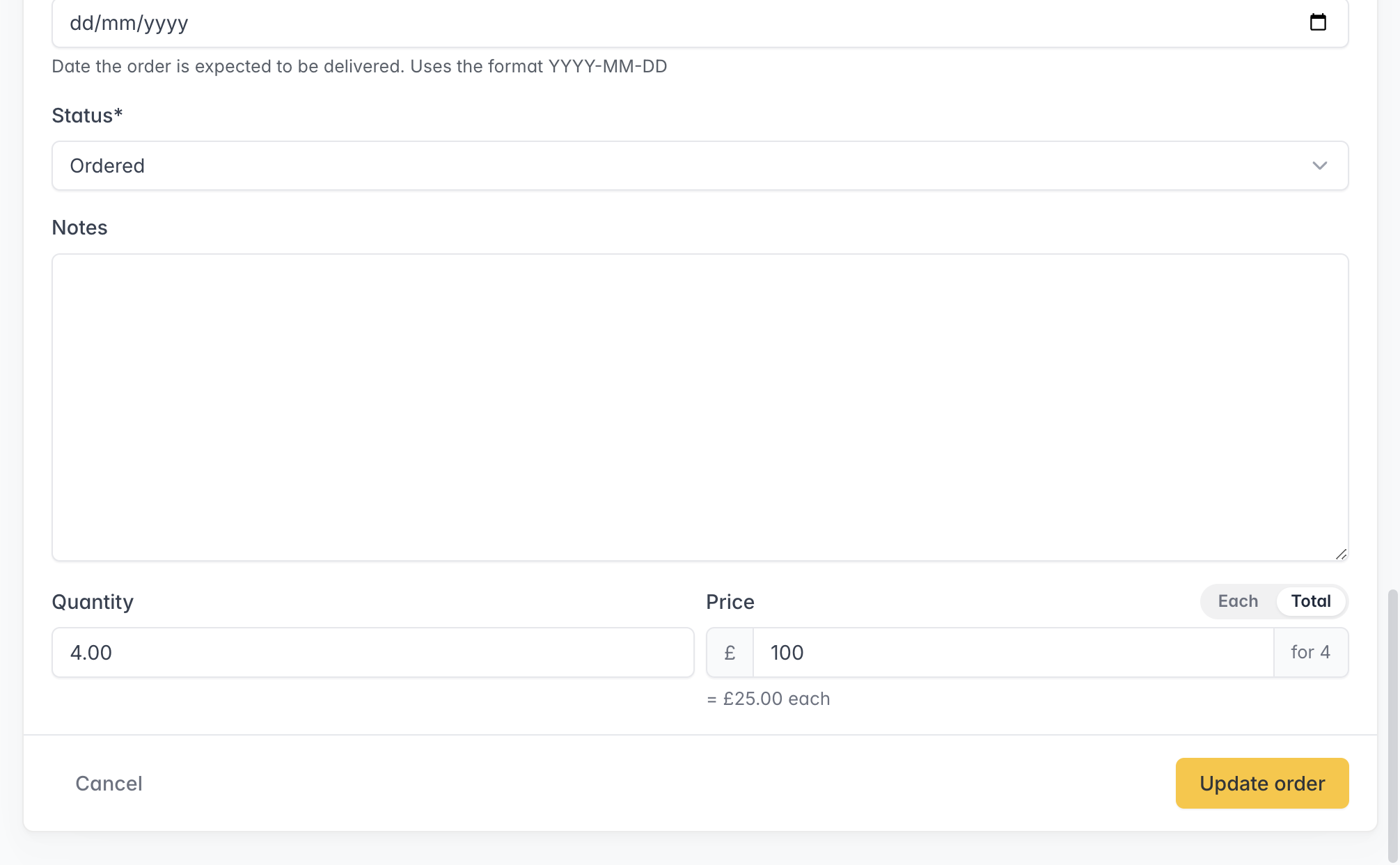
On each job product, use Installed by to say who installed and how many. Split quantities when more than one fitter worked the line, including fractions (for example 0.60 / 0.40). With one person booked on the job, products are assigned to them automatically.
Labour on financials
Job financials show pricework lines next to hourly and daily bookings. Unassigned products are listed but not counted until an installer is set. The rate used for each installer is saved with the assignment, so changing pay rates later does not rewrite finished work.
Download a Clear Books CSV from an invoice so you can import it into your accounts without retyping line items.
If you use Clear Books for accounts, you can export an invoice as a CSV ready for their sales invoice import.
How it works
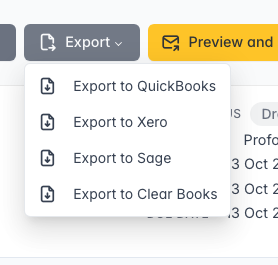
On an invoice, open Export and choose Export to Clear Books.
The file includes the invoice number, dates, customer, line items, VAT rates, and currency. Import it in Clear Books under Tools → Import → Sales invoices, then map the columns if prompted.
Set a different default email subject and message for proformas under Invoice settings, without changing your normal invoice email.
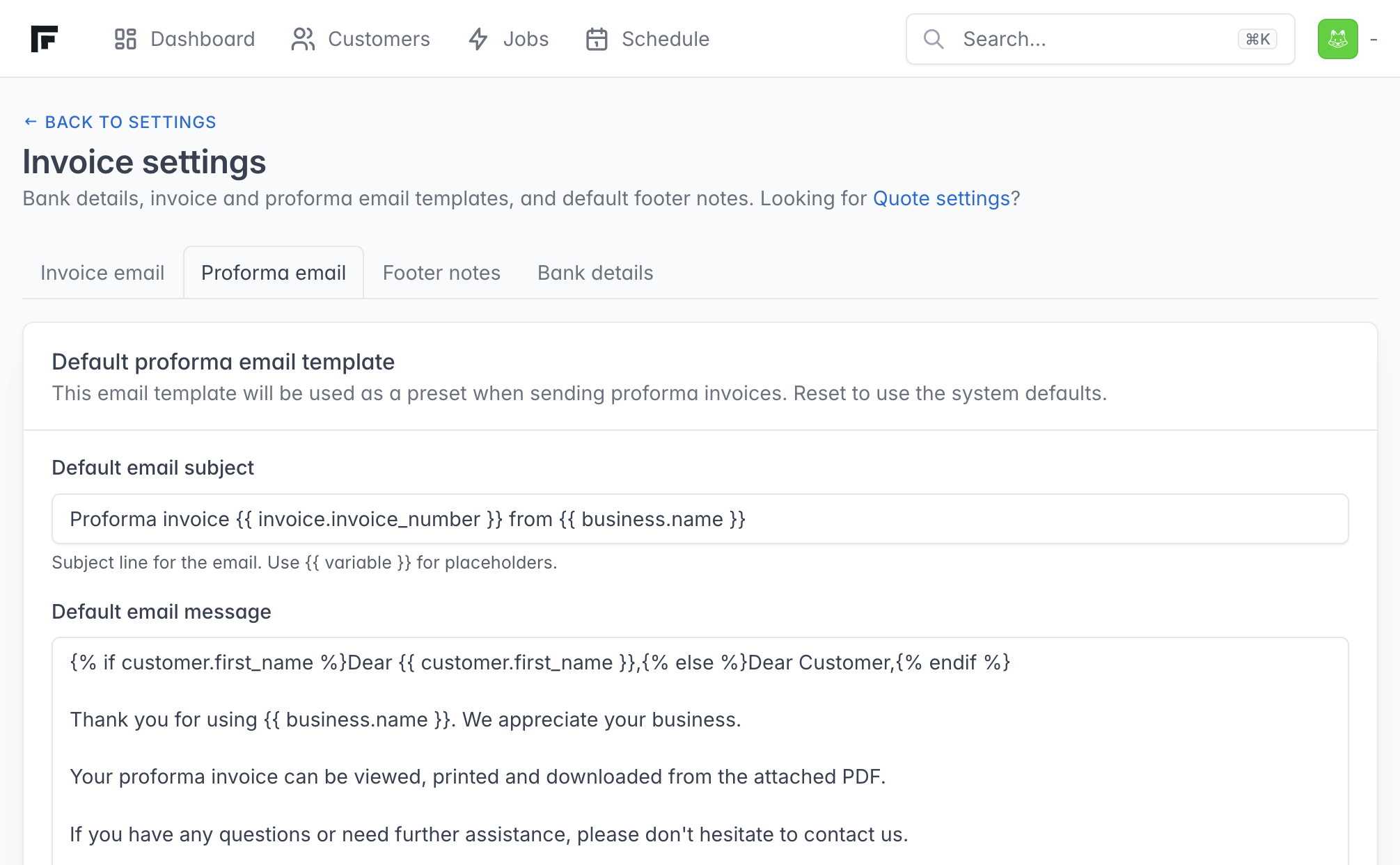
You can now set a dedicated email template for proforma invoices. When you send a proforma, FitterPal uses that wording instead of your normal invoice email.
Where to find it
Open Invoice settings. The email tabs are now:
Invoice email (still the default) for standard invoices
Proforma email for proformas
How it works when you send
Sending a normal invoice still uses the Invoice email template. Sending a proforma uses the Proforma email template. If you have not set a custom proforma template yet, the built-in proforma wording is used.
The send screen links to the matching settings page so you can adjust the template from there.
The printable job sheet now lists job and customer contacts, with a toggle to leave them off.
When you print a job sheet, contacts for the job and the customer now appear under the customer block.
Each contact shows name, phone, email, and notes, plus Primary or Customer badges where they apply. If you do not need them on the printout, turn off Contacts in print options before you print.
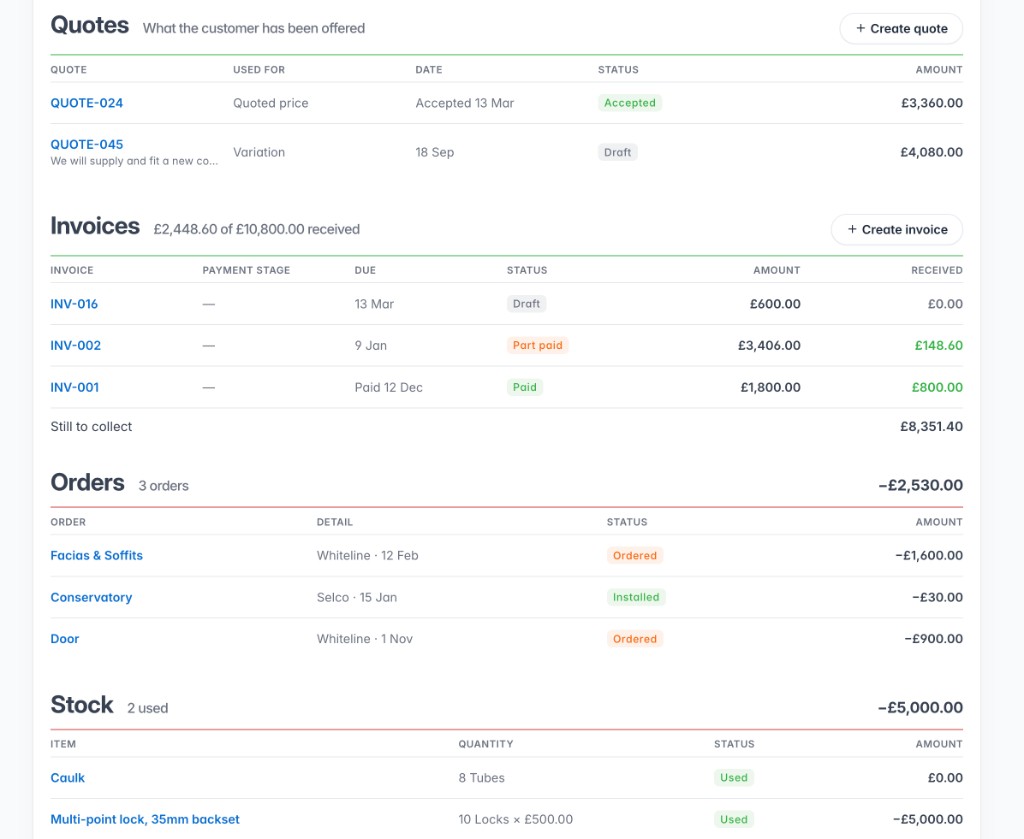
Job financials now break labour out by person and booking, and include stock used in the cost total.
The financials view on a job now matches how you actually work a visit.
Quotes and invoices sit in their own tables at the top. Orders, stock and labour follow as outgoings. Labour is listed by each person with their rate, hours and cost, then by the bookings they were assigned to. When more than one person shares a booking, the hours are still split evenly between them for the total. Reserved stock is shown but does not count toward margin until it is marked used.
The same financials layout is used on the job page and the classic job detail view.
Settings → SmartStages is now one place for checklist tasks on each step and moving the job when a step is completed.
Job checklists now live on the same SmartStages page as status automations. For each job type, every step shows the tasks to add to new jobs and a simple control for whether completing that step should keep the current status or move the job.
Where to find it
Open Settings and choose SmartStages. The old Manage job checklists link redirects here. Tasks that should only appear on the job Tasks list (not under a step) sit in Tasks without a step at the bottom.
Checklist tasks still apply when you create a job or use Apply checklist on an existing job. Status changes still run once, the first time someone marks that step complete.
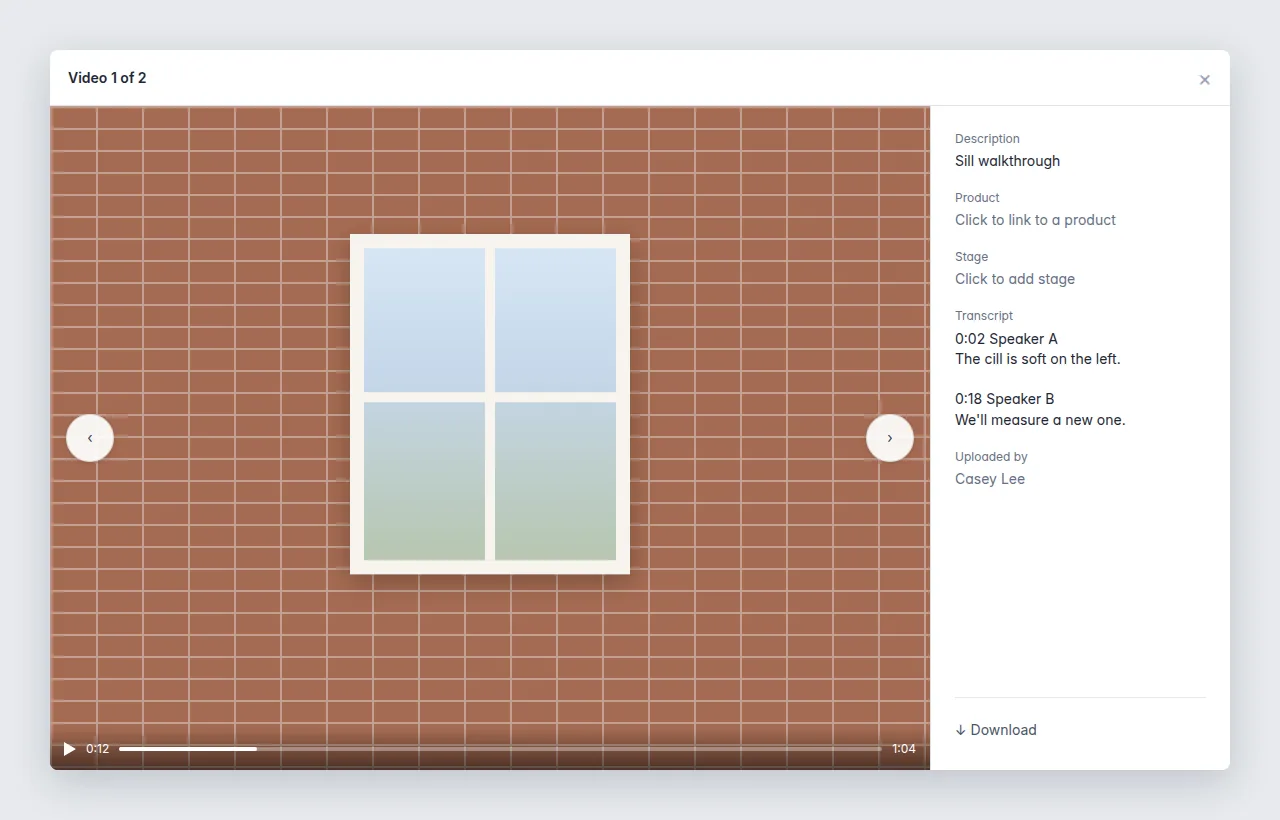
Site videos sit with the photos, with a still of the first frame and a transcript of what's said.
You can add a video anywhere you already add photos on a job. Use the photo upload on the job, drop a video onto the job page, or send it from the FitterPal app with the same photo upload.
The video shows in the photo list. A still of the first frame is used as the thumbnail, the same way photos use theirs, with a play icon over the still so it is easy to tell apart from a photo. Open it to play the video. When someone is speaking, a transcript appears beside it, with timestamps, so the office can read the site notes without watching the whole clip.
Videos can be up to 250 MB. Common phone formats are fine, including the videos an iPhone saves. Longer videos upload straight to storage, so they do not pass through the app server.
Open any vehicle on its own page with compliance, mileage, details, and stock in one place.
Each vehicle now has its own page. From the fleet list, click a row to open it.
On the vehicle page
You get a clear header with the plate and name, plus quick stats for mileage, stock on board, drivers, and status.
Further down you get stock on board first, with quantity steppers, transfer stock, and a link into inventory. Items already on the van stay in one list; the rest of your catalogue sits under all items so counts do not jump around as you edit. Then set MOT, service, insurance, and road tax dates and log booked or done updates. Mileage sits below with a trend chart and a clear log of readings. Log mileage opens a simple modal, and you can delete a mistyped reading from the list. Details stay in the sidebar. Edit vehicle still opens the familiar form when you need to change identity, drivers, status, or archive the vehicle.
Creating vehicles
Add vehicle still opens from the list. After you save, you land on the new vehicle’s page.