Installation guarantees
Issue a guarantee from the job, email a PDF the customer can keep, and manage drafts from Compliance certificate.
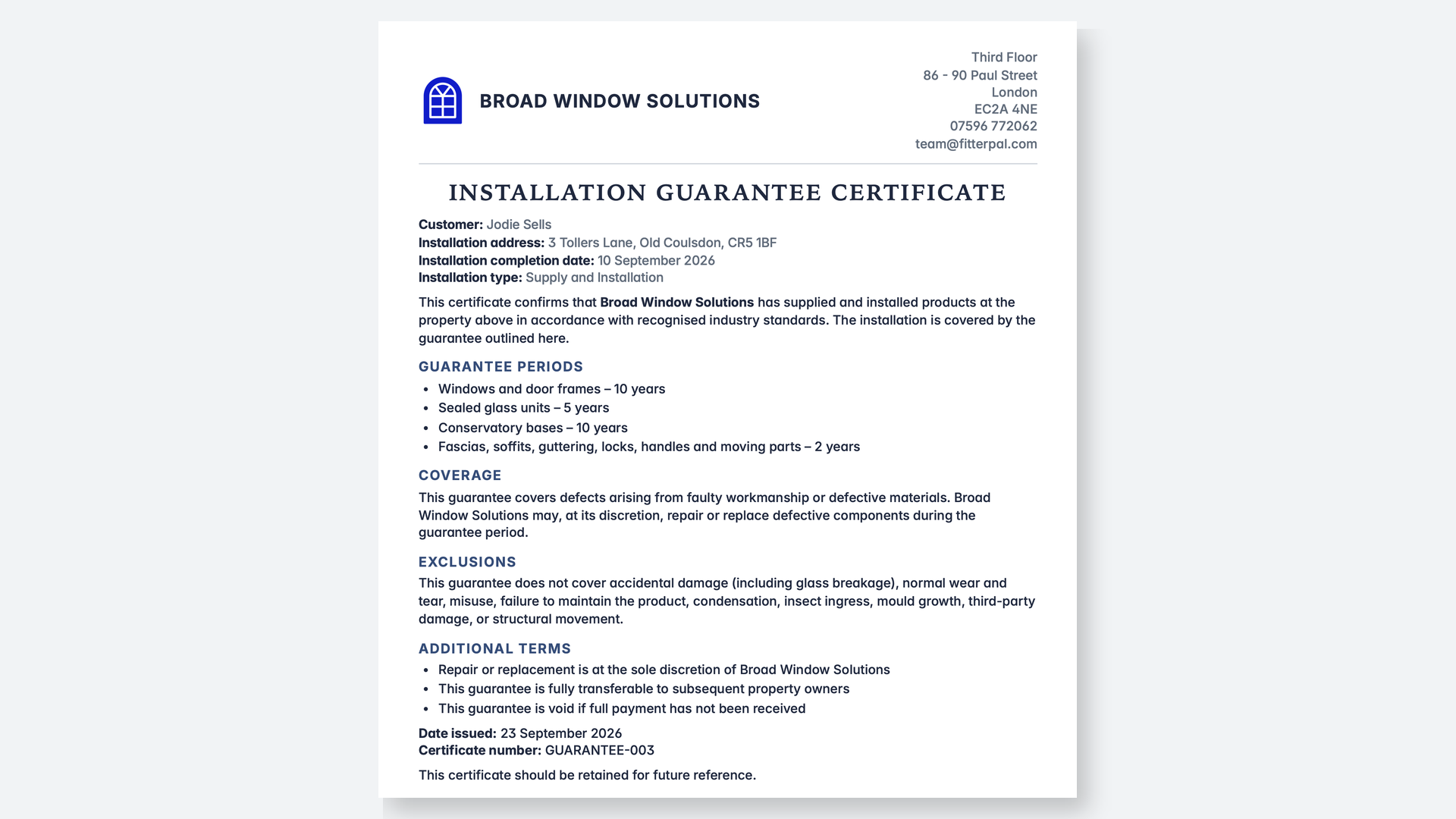
You can issue a guarantee from a completed job and email a PDF the customer can keep with their paperwork.
How it works
Save your guarantee wording under Guarantees → Templates, choose a guarantee style, and pick a header layout (left, centred, or justified). You can also upload your own company seal on the templates page to use on every guarantee. When an installation is finished, pick that template on the job. FitterPal fills in the customer, address, completion date and issue date, and your team can tweak the wording before it goes out. The installation completion date is filled from the latest installation booking when you create a guarantee.
Sending uses the same email composer as quotes and invoices, so you can CC colleagues, reuse your messaging templates, and set a default subject and message under Guarantees → Email settings.
Issue and send freezes the guarantee, files a PDF on the job, and emails it to the customer. You can resend later, or void a guarantee if it should no longer stand.
Drafts and issued guarantees also appear on the Compliance certificate smart stage (with a thumbnail on the collapsed row), where you can issue or add another guarantee next to marking the step submitted.
Getting started
Guarantees only appear once your organisation has at least one active template. Start with the classic, formal, or modern sample, or paste the wording you already use. Before the first send, check Guarantees → Email settings if you want a custom default message. You can also open a finished job’s Compliance certificate step or use the Guarantees tool on the job.